Here are a few tips and tricks I wanted to highlight. Check out my blog for more!
Keyboard Navigate Any Menu
- Click on any menu (the menu at the top of the screen, a menu in a Photoshop panel, etc.).
- Start typing the name of the item you want.
- Once the item is highlighted hit Return to choose it. (You can also use the Arrow keys to move up/down, or in/out of submenus.)
Create or Change Keystrokes for Any App
Only some apps allow you to customize their own keystrokes. For those that don’t, Mac OS X gives you a way. You can define universal keystrokes apply to all apps, or specifically for one app. Here's how:
- Go into the Apple Menu > System Settings.
- Select the Keyboard section.
- Click the Keyboards Shortcuts button.
- Select App Shortcuts on the left.
- Click the + button (below the right panel).
- Choose All Applications or the specific app you want.
- For Menu title type in the name of the menu item exactly as it appears (don’t worry about the menu that it’s in, just the name of the specific menu item. Capitalization matters and don't forget the ... at the end of many menu items.)
- Click into the Keyboard shortcut field and press your desired shortcut.
- Click Done and close out of System Settings.
- You’ll need to relaunch the affected program to use the new keystroke.
One limitation is that the keystrokes can only be for menu items. If there’s no menu item for a feature, you can’t create a keystroke for it with this technique.
Window Titlebar Icons
When you have a file open, such as an image in Photoshop, or a letter you are writing in Microsoft Word, you may want to see where that file is saved or move it to another folder. In the titlebar of a window, most programs have an icon to the left of the filename (as shown below). These icons actually represent the file. If you click and hold on the icon for a moment, then drag it to a folder, your desktop, wherever, you’ll actually move that file! Please note that some apps work differently. For instance TextEdit makes an alias to the file instead of moving it.

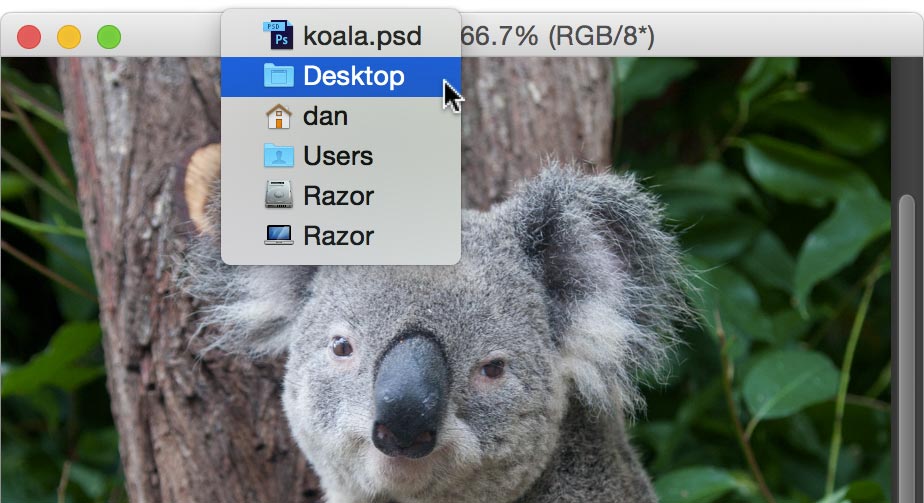
To locate where the file is, hold Command and click on the filename in the titlebar. As shown below, a menu will pop-up displaying the folder structure of the file’s location. Choose one of the folders to open it in the Finder. You can also Right–Click or Control–Click the name/icon to get this menu.
While these icons used to be visible all the time, you now have to hover and wait for the icon to appear, which makes them harder to use. Luckily you can show them all the time by going into Apple menu > System Settings. On the left select Accessibility and go into Display. Turn on Show window title icons.
TextEdit & Safari are Good Buddies
You can copy content such as text in Safari and when you paste into TextEdit it maintains formatting and links! TextEdit also plays well with other browsers, but not as well as Apple’s own Safari.